AWS DevOps- Day7
Building a Production-Grade AWS Project 🏗️
Overview 🌐
This blog covers the implementation of a production-ready AWS environment as demonstrated in AWS DevOps series. We’ll be creating a secure, scalable, and highly available architecture using AWS services such as VPC, EC2, Load Balancer, Auto Scaling Group, and Bastion Host. Let’s dive deep into deploying this project step-by-step! 💻
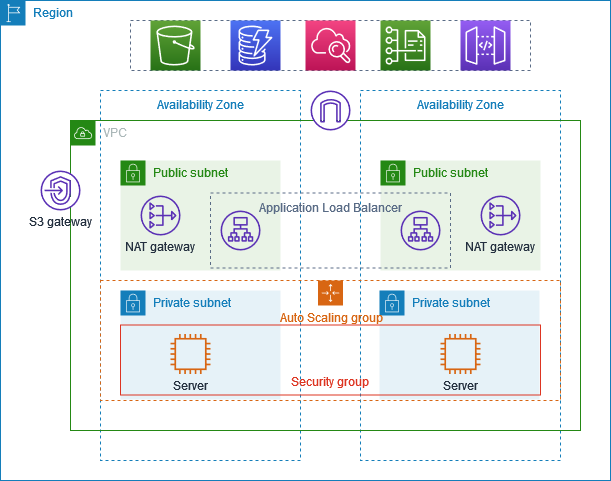
Architecture Overview 🖼️
The architecture we will implement is designed for high availability and security:
VPC: A custom Virtual Private Cloud for resource isolation.
Subnets:
Public subnets for Load Balancer and NAT Gateway.
Private subnets for hosting application servers (EC2 instances).
Bastion Host: Secure SSH access to private EC2 instances.
Elastic Load Balancer (ELB): Distributes incoming traffic across EC2 instances.
Auto Scaling Group (ASG): Ensures scalability based on traffic demand.
NAT Gateway: Enables secure internet access for private subnet instances.
Implementation Steps 🛠️
Step 1: Create a VPC and Subnets
Go to the AWS Management Console → Navigate to VPC.
Create a VPC:
- CIDR block:
10.0.0.0/16.
- CIDR block:
Create Subnets:
Public Subnets: Assign CIDR blocks
10.0.1.0/24(AZ1) and10.0.2.0/24(AZ2).Private Subnets: Assign CIDR blocks
10.0.3.0/24(AZ1) and10.0.4.0/24(AZ2).
💡 Pro Tip: Tag your subnets appropriately, e.g., “Public-Subnet-1” and “Private-Subnet-1”, for easy identification.
Step 2: Attach Internet Gateway and NAT Gateway
Create an Internet Gateway → Attach it to your VPC.
Create a NAT Gateway:
Deploy it in a public subnet.
Associate it with an Elastic IP (EIP).
Route Table Configuration:
Public Subnet: Add a route to
0.0.0.0/0pointing to the Internet Gateway.Private Subnet: Add a route to
0.0.0.0/0pointing to the NAT Gateway.
Step 3: Launch EC2 Instances
Create a Security Group for private EC2 instances:
Allow inbound traffic from the Bastion Host for SSH (port 22).
Allow HTTP traffic from the Load Balancer (port 80).
Launch EC2 Instances:
Use ubuntu as the AMI.
Deploy instances in the private subnets.
Step 4: Set Up a Bastion Host
Launch an EC2 Instance in a public subnet (Bastion Host).
Create a Security Group for the Bastion Host:
- Allow inbound SSH traffic (port 22) from your local IP.
Use the Bastion Host to connect to private EC2 instances:
ssh -i <your-key.pem> ec2-user@<private-instance-ip> -J ec2-user@<bastion-public-ip>💡 Pro Tip: Use SSH Agent Forwarding for seamless access to private instances.
Step 5: Deploy a Load Balancer
Create an Application Load Balancer (ALB):
Place it in the public subnets.
Configure the Listener to forward HTTP (port 80) traffic.
Target Group Configuration:
Add the private EC2 instances to the target group.
Set up health checks (e.g.,
HTTP:80/index.html).
Step 6: Configure Auto Scaling Group (ASG)
Create a Launch Template:
- Specify the AMI, instance type, security group, and private subnets.
Create an Auto Scaling Group:
Minimum instances: 2.
Maximum instances: 4.
Set up scaling policies based on CPU utilization.
Step 7: Deploy the Application
SSH into one of the private EC2 instances.
Install the necessary dependencies for the application (e.g., Apache or Nginx).
 sudo apt install httpd -y
 sudo systemctl start httpd
 sudo systemctl enable httpd
Deploy the application files (e.g., a sample index.html).
Step 8: Test the Setup
Access the application through the Load Balancer's DNS name.
Simulate a failure in one of the availability zones to verify high availability.
Monitor traffic using AWS CloudWatch and observe Auto Scaling Group behavior under load.
Conclusion 🎉
Congratulations! You’ve successfully deployed a production-grade AWS architecture. This setup ensures high availability, scalability, and security for your application. AWS services like VPC, ELB, and ASG make it easy to manage traffic and maintain performance even under heavy load.
💡 Next Steps:
Experiment with monitoring tools like AWS CloudWatch for enhanced observability.
Add SSL/TLS certificates to your Load Balancer for secure HTTPS traffic.
By following this step-by-step guide, you’re now equipped to deploy real-world applications using AWS. Keep learning and exploring the endless possibilities in the cloud! ☁️

